To install HBO Max on an Amazon Fire TV Stick, open Find on the Fire TV home screen, search for HBO Max or Max, and download the official app from the Amazon Appstore. Max lists Amazon Fire TV devices running Fire OS 5 or later as supported. App names can vary by country, device software, and the current HBO Max/Max branding rollout; these instructions were checked against official support guidance on August 18, 2026.
Before you start
- Your Fire TV Stick must be powered on, connected to the internet, and registered to an Amazon account.
- Max officially lists Amazon Fire TV devices running Fire OS 5 or later as supported. Check the device model and software version if you have an older Stick.
- You need an HBO Max/Max subscription, provider access, or a way to subscribe. Installing the app itself does not provide free access.
- The service must be available in your country or account region.
- Leave enough free storage for the app and its updates.
Max’s official compatibility and installation guidance is available at Max Help.
HBO Max or Max: which app should you search for?
The service may be presented as HBO Max, while official help pages and some Fire TV interfaces still use Max. The naming transition does not necessarily mean these are separate services. If searching for one name produces no result, search for the other. Always select the official app from the Amazon Appstore, not a browser shortcut, downloader utility, or APK listing.
Install HBO Max from the Fire TV Stick
- Press the Home button on the Fire TV remote.
- Select Find on the navigation bar.
- Choose Search.
- Search for HBO Max. If it does not appear, search for Max.
- Select the official HBO Max/Max app.
- Choose Download, Get, or Install. The label depends on the Fire OS version and app branding.
- Wait for installation to finish, then select Open.
To open it later, go to the Fire TV apps library and select HBO Max/Max. You can move the app toward the front of the Apps row if you use it frequently.
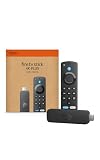
#1 Best Overall

Amazon Fire TV Stick 4K Plus (newest model) with AI-powered Fire TV Search, Wi-Fi 6, stream hundreds of thousands of movies and shows, free & live TV, find shows faster with Alexa+
- Advanced 4K streaming – Elevate your entertainment with the next generation of our best-selling 4K stick, with improved streaming performance optimized for 4K TVs.
- The newest Fire TV experience (2026) – Our biggest update to Fire TV has a new, modern design that gets you to your entertainment fast. Browse dedicated content categories, pin more of your favorite apps, and get personalized recommendations from Alexa+. Spend less time scrolling, and more time watching.
- Play Xbox games – Stream Call of Duty: Black Ops 7, Hogwarts Legacy, Outer Worlds 2, Ninja Gaiden 4, and hundreds of games on your Fire TV Stick 4K Plus with Xbox Game Pass via cloud gaming.
- Smarter picks with Alexa+ – Getting to what you love has never been easier. Press the voice remote button and talk naturally to find what to watch across your apps, manage your smart home, or dive into virtually any topic.
- Wi-Fi 6 support – Enjoy smooth 4K streaming, even when other devices are connected to your router.
Sign in on your Fire TV Stick
Sign in with the remote
- Open HBO Max/Max.
- Select Sign In.
- Enter your account email address and password.
- Complete any additional on-screen authentication steps.
Use a phone or computer
Some versions of the TV app display a QR code or six-digit code. Scan the QR code with your phone, or open the sign-in address shown on the television. Enter the six-digit code if requested, sign in to your Max account, and return to the Fire TV Stick. Select Start Streaming if the app displays that option. See the official TV sign-in guidance for the current code and QR process.
Using HBO access from a cable, mobile, or internet provider
Paying for HBO through a provider does not always mean that the provider login can be entered directly as a Max login. First confirm that your package includes Max streaming access. In the app, choose Connect Provider or the equivalent option, then complete the provider authorization flow on a phone or computer if necessary.
Rank #2

Amazon Fire TV Stick HD (newest model), free & live TV, Alexa Voice Remote, powered by the TV, effortless setup, find shows faster with Alexa+
- Upgrade your TV, instantly – Fire TV Stick HD is our fastest HD streaming stick ever, with a streamlined navigation that jumps straight to your movies, shows, and live TV. Take your entertainment on the go with the new ultra-portable profile. And watch it all come to life with crisp Full HD and Wi-Fi 6 support.
- The newest Fire TV experience (2026) – Our biggest update to Fire TV has a new, modern design that gets you to your entertainment fast. Browse dedicated content categories, pin more of your favorite apps, and get personalized recommendations from Alexa+. Spend less time scrolling, and more time watching.
- All your apps in one place – Prime Video, Netflix, YouTube, Disney+, Apple TV, HBO Max, Hulu, Peacock, Paramount+, and thousands more. It’s easy to find what to watch from hundreds of thousands of movies and TV episodes, including free, ad-supported content. Subscription fees may apply.
- Our most portable stick – Thin and light, without extra clutter. Connects directly to your TV’s HDMI port without blocking other ports.
- Easier than ever to set up – Now with Direct Power, it’s powered by your TV with the included USB-C cable and eliminates the need for a wall adapter.
Do not create a second Max subscription before checking your existing entitlement. Provider credentials are managed by the provider, not by Max. Max explains this distinction in its provider sign-in support guide.
Do you need to subscribe through Amazon?
No. You can install the app first and decide how to obtain access. In the United States, the simplest direct route is generally the official Max signup page. Max’s support guidance says subscriptions through the Amazon Appstore are available only in Brazil and Mexico, so U.S. users who cannot subscribe inside the app should use Max.com or an eligible provider route.
Rank #3

Amazon Fire TV Stick 4K Max (newest model), streaming device, with AI-powered Fire TV Search, supports Wi-Fi 6E, free & live TV without cable or satellite, find shows faster with Alexa+
- The newest Fire TV experience (2026) – Our biggest update to Fire TV has a new, modern design that gets you to your entertainment fast. Browse dedicated content categories, pin more of your favorite apps, and get personalized recommendations from Alexa+. Spend less time scrolling, and more time watching.
- Elevate your entertainment experience with a powerful processor for lightning-fast app starts and fluid navigation.
- Play Xbox games – Stream Call of Duty: Black Ops 7, Hogwarts Legacy, Outer Worlds 2, Ninja Gaiden 4, and hundreds of games on your Fire TV Stick 4K Max with Xbox Game Pass via cloud gaming. Xbox Game Pass subscription and compatible controller required. Each sold separately.
- Smarter picks with Alexa+ – Getting to what you love has never been easier. Press the voice remote button and talk naturally to find what to watch across your apps, manage your smart home, or dive into virtually any topic.
- Enjoy the show in 4K Ultra HD, with support for Dolby Vision, HDR10+, and immersive Dolby Atmos audio.
Max also lists Prime Video Channels among its provider options in the United States, but Prime membership alone does not automatically include Max. Availability, billing, plans, and features vary by country and provider.
If HBO Max or Max does not appear in the Appstore
- Search for both HBO Max and Max.
- Restart the Fire TV Stick.
- Install any pending Fire TV system updates by opening Settings → My Fire TV → About → Check for System Update.
- Check the Amazon account’s country or region and confirm that the service is available there. Do not misrepresent your location to bypass availability restrictions.
- Check the exact Fire TV model and its Fire OS version. The official support requirement is Fire OS 5 or later, but very old devices may no longer meet current app requirements.
- Make sure the device is online, registered, and has sufficient storage.
If the Stick remains unsupported, the practical alternatives are a newer compatible streaming device, a compatible smart-TV app, or a computer connected to the television by HDMI. Do not assume that every Fire TV Stick model remains compatible indefinitely.
Rank #4

Amazon Fire TV Stick 4K Select (newest model), start streaming in 4K, AI-powered search, and free & live TV, find shows faster with Alexa+
- Essential 4K streaming – Get everything you need to stream in brilliant 4K Ultra HD with High Dynamic Range 10+ (HDR10+).
- The newest Fire TV experience (2026) – Our biggest update to Fire TV has a new, modern design that gets you to your entertainment fast. Browse dedicated content categories, pin more of your favorite apps, and get personalized recommendations from Alexa+. Spend less time scrolling, and more time watching.
- Make your TV even smarter – Fire TV gives you instant access to a world of content, tailor-made recommendations, and Alexa, all backed by fast performance.
- All your favorite apps in one place – Experience endless entertainment with access to Prime Video, Netflix, YouTube, Disney+, Apple TV+, HBO Max, Hulu, Peacock, Paramount+, and thousands more. Easily discover what to watch from hundreds of thousands of movies and TV episodes (subscription fees may apply), including free, ad-supported content.
- Getting set up is easy – Plug in and connect to Wi-Fi for smooth streaming.
If installation is stuck or fails
- Open Settings → Network and press the remote’s Play button to test the connection.
- Restart the Stick through Settings → My Fire TV → Restart.
- Update Fire OS and the HBO Max/Max app.
- Remove unused apps to free storage.
- Highlight the app, press the remote’s three-line Menu button, and choose More Info → Update if an update is available.
- Force-stop the app by opening Settings → Applications → Manage Installed Applications → Max → Force Stop.
- Choose Clear Cache. If that does not help, choose Clear Data; clearing data removes stored app information and signs you out.
- As a final software step, use Settings → Applications → Manage Installed Applications → Max → Uninstall, then reinstall the official app from the Amazon Appstore.
These paths and recovery steps are based on Max’s Fire TV troubleshooting guidance. Menu wording can differ slightly between Fire OS versions.
If the app opens to a blank screen or keeps crashing
Close and reopen the app, restart the Fire TV Stick, and check for both app and system updates. Clear the cache before clearing data. If the problem continues, reinstall the app. Also check the HDMI connection and television input, and try another title to determine whether the problem affects the entire app or only one program.
Best Value
Sale

Roku Streaming Stick HD with Voice Remote
- HD streaming made simple: With America’s number 1 TV streaming platform,* exploring popular apps—plus tons of free movies, shows, and live TV—is as easy as it is fun. *Based on hours streamed—Hypothesis Group
- Compact without compromises: The sleek design of Roku Streaming Stick won’t block neighboring HDMI ports, and it even powers from your TV alone, plugging into the back and staying out of sight. No wall outlet, no extra cords, no clutter.
- No more juggling remotes: Power up your TV, adjust the volume, and control your Roku device with one remote. Use your voice to quickly search, play entertainment, and more.
- Shows on the go: Take your TV to-go when traveling—without needing to log into someone else’s device.
- TV, simplified: With setup that only takes minutes, a simple-to-navigate Home Screen, and an uncluttered remote control that does all you need—Roku makes it easier to watch the TV you love.
If playback keeps buffering
- Open Settings → Network and run the Fire TV network test.
- Restart the Fire TV Stick, router, and modem.
- Pause heavy downloads and other streaming activity on the network.
- Improve the Wi-Fi position of the router or Stick where possible.
- Consider a compatible wired Ethernet setup if Wi-Fi remains unreliable.
- Update Fire OS and the app, then clear the app cache and restart.
Max lists 5 Mbps as the minimum for HD streaming and recommends 50 Mbps or more for 4K streaming. Those figures do not guarantee smooth playback: Wi-Fi conditions, network congestion, the title, Fire TV hardware, television, and HDMI chain also matter. See Max’s buffering and playback guidance.
Can you sideload HBO Max?
It is not the supported installation method. Max says installation from outside an official app store is unsupported. An APK obtained from a third-party site may be outdated, modified, incompatible with the Fire TV Stick, or unable to update normally. It can also create sign-in, playback, and security problems.
Amazon documents ADB installation for developers testing their own Fire TV apps, but that does not make sideloading HBO Max an approved consumer solution. Use the official Amazon Appstore whenever the app is available. Max’s policy is summarized in its unsupported-installation guidance.
Streaming quality and plan limits
Plan features depend on country and the billing provider. In the U.S., Max’s official support material lists Basic with Ads and Standard with two simultaneous streams at up to 1080p, while Premium supports up to four streams and 4K Ultra HD where available. Premium also includes Dolby Atmos where available and a larger download allowance. A 4K-capable plan alone does not guarantee 4K: the title, Fire TV hardware, television, HDMI setup, and network must all support it.
Prices and features change, so check the current official U.S. plan information before subscribing. The figures referenced in the research for Basic with Ads ($9.99 monthly or $99.99 annually), Standard ($16.99 monthly or $169.99 annually), and Premium ($20.99 monthly or $209.99 annually) were listed as of August 18, 2026 and should not be treated as permanent prices.
