
If Spotify shows playback but you hear nothing, it is usually sending audio to a different output: headphones, a Bluetooth device, another Spotify Connect speaker, an HDMI display, or a separate app output assigned by Windows. Start Spotify playback, open the Connect device menu, select the speaker you want—or the local computer or phone—and then verify the operating system’s output, every volume control, and the speaker’s input.
The quickest way to narrow it down is to play audio from another app through the same speakers. If nothing works, troubleshoot the speaker, connection, or operating system. If other apps work and only Spotify is silent, concentrate on Spotify’s device selection, app-specific routing, wireless handoff, or the Spotify app itself.
Quick fix checklist
- Play a track in Spotify.
- Open the speaker/device icon in the Now Playing bar.
- Select the intended speaker, or select the phone or computer if you want local playback.
- Check the operating system’s selected output device.
- Raise Spotify’s volume, the device’s media volume, and the speaker or amplifier’s physical volume.
- Check whether playback has been redirected through Bluetooth, Spotify Connect, AirPlay, or Cast.
- Restart Spotify, the speaker, and the phone or computer.
- For wireless speakers, confirm pairing or same-network connectivity.
- Update Spotify, the operating system, and the speaker’s firmware.
- Clear the cache or reinstall Spotify only after the routing and connection checks fail.
Spotify’s own troubleshooting guidance recommends checking the selected audio output and media volume, testing another app, and checking whether playback was redirected to another device. Spotify’s no-sound guidance covers the general diagnostic approach.
Identify the connection before changing settings
“Speakers” can mean several different audio paths. Each has a different first check.
| Connection | Check first |
|---|---|
| Built-in computer or phone speakers | Windows or macOS/iOS/Android output selection and mute state |
| Bluetooth speaker or headphones | Bluetooth settings, media output, pairing, and the speaker’s input and volume |
| Spotify Connect | Spotify’s device picker and the Wi-Fi connection |
| AirPlay | AirPlay output selection and same-network connectivity |
| Chromecast or Google Cast | Cast output selection and same-Wi-Fi status |
| AUX or USB | Cable, physical input, and system output |
| HDMI monitor, receiver, DAC, or audio interface | Selected system output, drivers, and Exclusive Mode |
Spotify lists Connect, voice assistants, Bluetooth, AUX/USB, Chromecast Audio, and Apple AirPlay as separate speaker playback methods. Compatibility varies by device, protocol, software, firmware, and region; a speaker that supports Bluetooth or Cast is not automatically a Spotify Connect device. See Spotify’s speaker compatibility guidance.
1. Re-select Spotify’s audio device
- Start a song.
- Click or tap the speaker/device icon in the Now Playing area.
- Choose the intended external speaker.
- If you want the computer or phone’s own speakers, choose the local device or return playback to that device.
Spotify Connect transfers playback to the selected device; it does not simply change the computer’s normal system output. A device can appear in the list yet remain silent because it is muted, offline, on the wrong input, or being controlled by another session. Select a different device briefly, then select the intended speaker again.
For first-time Spotify Connect connections, the controlling device and speaker generally need to be on the same Wi-Fi network. Spotify’s setup and troubleshooting steps are documented at Spotify Connect support and Spotify’s Connect setup page.
2. Check every volume and output control
There may be several independent volume layers:
- Spotify’s in-app volume slider.
- The phone or computer’s media volume.
- Spotify’s per-app volume in Windows.
- The Bluetooth speaker, powered speaker, receiver, or amplifier’s volume.
- Mute controls on a keyboard, monitor, dock, receiver, or speaker.
On a phone, check media volume rather than ringtone or call volume. On an external speaker or amplifier, verify that it is powered on, unmuted, set to the correct input, and not controlled by another source.
Do not begin by changing equalizer, normalization, or audio-quality settings. Those settings rarely explain a complete absence of sound.
Windows: Spotify is silent while other apps work
Windows can give each app its own volume and output device. Selecting the correct system output alone may not fix Spotify.
- Open Start > Settings > System > Sound.
- Open Volume mixer.
- Under Apps, find Spotify.
- Make sure Spotify is not muted and raise its volume.
- Set Spotify’s Output device to the intended speakers rather than headphones, HDMI, a monitor, a dock, or a disconnected device.
- Also open the taskbar sound control and verify the main system output.
- Close and reopen Spotify.
Microsoft identifies per-app volume, per-app output, audio services, and drivers as common causes when system sounds work but one app does not. See Microsoft’s per-app audio troubleshooting steps.
Disconnect unused Bluetooth, HDMI, USB, and dock audio devices temporarily. This reduces the chance that Windows is routing Spotify to an output that is connected but not audible.
If no Windows app has sound
- Confirm the correct output and that Windows is not muted.
- Run the Windows audio troubleshooter or the audio diagnostic in Get Help.
- Restart Windows audio services if the problem affects applications generally.
- Update or reinstall the audio driver if the speakers are missing or silent everywhere.
- Test disabling audio enhancements if sound is distorted, intermittent, or absent.
Microsoft’s broader Windows no-sound guidance covers output selection, mute, enhancements, and driver failures.
Rank #2

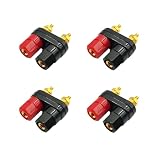
Voluty Tek Speaker Terminals Connectors 2-Way 4MM Banana Plug Jack Female Socket Terminal Speaker Binding Post Audio Adapter Gold Plated 2pcs
- Dual Binding Posts: Compatible with 4mm banana plugs (stackable or single), spade connectors, or bare wires
- Secure & Durable: Gold-plated contacts resist corrosion; threaded sleeves and knurled nuts provide tight,vibration-proof connections
- Versatile Use: Our speaker binding post adapters ideal for speaker terminals, amplifier outputs, power supplies, multimeters, and DIY electronics projects
- Easy Installation: Includes color-coded (red/black) terminals and solder-free screw-down design for quick wiring
- What You Will Get: 4pcs of 2 way 4mm speaker connectors terminal
Turn off Exclusive Mode when using a DAC or audio interface
Exclusive Mode is an advanced feature in the Windows desktop app for Premium users. It gives Spotify exclusive control of a compatible audio device, so other applications cannot use that device at the same time. It is mainly intended for external equipment such as a DAC or audio interface, not ordinary built-in speakers.
- Open Spotify Settings.
- Go to Playback.
- Under Audio output, select another device or disable Exclusive Mode.
- Reconnect the DAC or interface.
- Check its drivers and firmware.
The setting may not appear for built-in speakers, Bluetooth devices, or virtual audio devices. If sound stopped after enabling it, disable it first. See Spotify’s Exclusive Mode documentation.
Mac: choose the correct output
- Open Apple menu > System Settings > Sound.
- Under Output, choose the Mac’s built-in speakers, connected speaker, headphones, display, AirPlay device, or USB interface.
- Raise the output volume and make sure mute is off.
- Check that a monitor, dock, or Bluetooth device has not become the active output.
- Quit and reopen Spotify.
Menu names can vary slightly between macOS releases, but the principle is the same: select the desired output in macOS, then confirm Spotify’s own device selection. Apple’s reference is Change Sound settings on Mac.
Mac Bluetooth speakers
- Open System Settings > Bluetooth.
- Confirm the speaker is connected, not merely paired.
- Disconnect headphones and other competing audio devices.
- Reconnect the speaker and restart Spotify.
Bluetooth speaker troubleshooting
Bluetooth is ordinary device audio; it is not the same as Spotify Connect. A paired speaker may not be connected for media, another phone may have taken control, or the speaker may be switched to AUX or another physical input.
- Close Spotify.
- Turn on Bluetooth on both devices.
- Pair the speaker through the phone, tablet, Mac, or PC’s Bluetooth settings.
- Keep the devices close—Spotify recommends approximately 1 metre/3 feet while troubleshooting.
- Confirm media sharing is enabled and both devices have adequate power.
- Reopen Spotify and play audio.
If Bluetooth says connected but Spotify is silent, check the speaker’s volume and mute state, the device’s media volume, and the active operating-system output. Disconnect cars, earbuds, headphones, watches, and other Bluetooth audio devices.
Forget and pair the speaker again
- Delete or forget the speaker from the phone or computer’s Bluetooth settings.
- Remove the saved connection from the speaker if its controls provide that option.
- Turn Bluetooth off and back on.
- Restart both devices.
- Pair the speaker again, then open Spotify.
Some speakers accept only one active connection. A nearby phone may therefore capture the connection even when your computer reports that pairing succeeded. The full Bluetooth procedure is in Spotify’s Bluetooth guidance.
Spotify Connect: speaker missing or listed but silent
Spotify Connect lets one device control playback on another compatible network device. It is separate from Bluetooth, and a generic Wi-Fi speaker is not necessarily Connect-compatible.
If the speaker is missing
- Confirm that the speaker is powered on and connected to Wi-Fi.
- Put the phone or computer and speaker on the same normal Wi-Fi network.
- Avoid guest networks, VPNs, cellular-only connections, and networks that isolate wireless clients.
- Start playback and open Spotify’s device menu.
- Restart Spotify, the speaker, the controlling device, and then the router if necessary.
- Update Spotify and the speaker’s software or firmware.
- Try another Wi-Fi network as a comparison test.
For iPhone, open Settings > Spotify and turn on Local Network. Without this permission, Spotify may not discover local speakers. Reopen the app afterward. Spotify documents this requirement in its Connect support article.
A speaker may also be absent because it supports Bluetooth or Cast but not Spotify Connect, or because its firmware and the app are incompatible. Test the speaker in its manufacturer’s app to separate a network or speaker problem from Spotify discovery.
Rank #3

Flex Pin Banana Plugs for Speaker Wire,Speaker wire Connector Pin Plug Type
- DUAL SCREW & FLEXIBLE PIN DESIGN: This banana plug connector is expertly crafted with flexible pin plugs and dual screws, specifically designed to optimise signal transmission for speaker cables. A strong, secure connection for your speaker cables is assured, offering superior audio performance.
- EASY INSTALLATION: Our speaker plug connector simplifies the installation of banana jacks. It’s perfect for a range of applications, including spring terminal connectors, speaker cable connectors, wall plates, home theatres, audio/video receivers, amplifiers, and sound systems, saving you time and effort.
- COLOURED GOLD-PLATED CONNECTORS: Our connector pins are gold-plated for corrosion resistance, ensuring their long-term use. The insulated banana plug design prevents short circuits.
- BROAD COMPATIBILITY: Our Slimline Speaker Plug is designed to accommodate a range of speaker cable sizes, from 12AWG to 20AWG. It’s compatible with speaker cables with a maximum jacket diameter of up to 4mm, offering versatility in use across different audio setups.
- DURABILITY AND PERFORMANCE: Built to last, these connectors offer both durability and high-quality sound. They optimise your speaker system’s performance, providing you with an immersive audio experience whether you’re in a home theatre or using audio/video receivers and amplifiers.
If the speaker appears but produces no sound
- Check the speaker’s volume, mute state, power, and physical input.
- Confirm playback is not paused and that another session has not taken control.
- Select the local phone or computer, play briefly, and select the speaker again.
- Restart the speaker and Spotify.
- Reconnect the speaker to Wi-Fi.
- Test playback from the manufacturer’s app.
If the manufacturer’s app also fails, the speaker, network, account, or firmware is more likely to be responsible than Spotify alone.
Android, Cast, AirPlay, and smart speakers
Android output switching and Cast
Android’s media output switcher can show Bluetooth devices, Cast speakers, smart displays, Chromecast or Google TV devices, and Spotify Connect devices. The exact interface varies by Android version and manufacturer. Google’s reference is Change where audio plays on Android.
For Cast, confirm that the phone and speaker or display are on the same Wi-Fi. The Android output switcher and Spotify’s own Connect list do not necessarily show exactly the same devices. A Cast-compatible device may support different Spotify controls or features from a Connect-compatible device.
AirPlay
- Put the Apple device and AirPlay speaker on the same Wi-Fi.
- Select the speaker in Spotify’s device menu or macOS/iOS AirPlay controls.
- Check the speaker’s volume, mute state, and input.
- Restart the speaker and controlling device if it does not appear or remains silent.
Alexa, Google Assistant, and manufacturer apps
- Confirm Spotify is linked to the correct voice-assistant account.
- Check the default speaker, room, or group.
- Test playback from the manufacturer’s app.
- Update the assistant, speaker, and Spotify.
- Unlink and relink Spotify only after basic routing, volume, and network checks.
Do not treat all wireless methods as interchangeable. Bluetooth, Connect, AirPlay, Cast, and voice-assistant integrations use different discovery and playback paths.
AUX, USB, HDMI, docks, receivers, and DACs
- Push the cable fully into both ends.
- Choose the correct input on the powered speakers, receiver, or amplifier.
- Try another cable and another port.
- Confirm the speaker or amplifier is powered and unmuted.
- Select the USB interface, DAC, HDMI display, dock, or receiver as the system output.
- Disconnect and reconnect the device.
- On Windows, check Spotify’s output in Volume mixer.
- For a DAC or interface, test with Exclusive Mode disabled and the output set to System Default.
- Install current manufacturer drivers and firmware if the device is not detected.
AUX and USB failures are often physical-input or cable problems rather than Spotify problems. Spotify recommends checking the cable and trying another one if damage is possible. HDMI adds another common route: the monitor or receiver may be selected as the output even when the computer’s built-in speakers are expected.
Use controlled tests instead of guessing
These four tests identify the failing layer:
- Another app on the same speakers: if it also fails, investigate the speaker, cable, Bluetooth, operating system, or network.
- Spotify on the local phone or computer: if local playback works, the account and app can produce audio; focus on the external route.
- Spotify on headphones or another output: if it works there but not on speakers, output routing is a strong diagnostic indication, not proof of a single cause.
- The speaker manufacturer’s app: if that also fails, contact the hardware manufacturer or repair the speaker/network before focusing on Spotify.
Restart, update, cache, and reinstall—in that order
Use the least-destructive repair first:
- Stop and restart playback.
- Re-select the output in Spotify.
- Close and reopen Spotify.
- Restart the speaker.
- Restart the phone or computer.
- Restart Wi-Fi for Connect, AirPlay, or Cast.
- Update Spotify.
- Update the operating system and speaker firmware.
- Sign out and back in.
- Clear Spotify’s cache if your platform exposes that option.
- Reinstall Spotify.
- Contact Spotify or the speaker manufacturer, depending on the cross-app test.
Spotify recommends current software, restarting connected devices and Wi-Fi, closing unnecessary apps, and trying another Wi-Fi connection. Cache and reinstall paths vary by platform and app version. Reinstalling may remove downloaded offline content, so it should not be the first response to a wrong output, muted speaker, incorrect input, or network-isolation problem.
When to contact support
Contact the speaker manufacturer when the speaker is silent in every app, cannot maintain Bluetooth or Wi-Fi connectivity, is not detected by its own app, or has an input, power, firmware, or hardware fault. Contact Spotify when other apps work, the same speaker works from its manufacturer’s app, and Spotify remains silent after output selection, volume, permissions, pairing or network checks, restart, and update steps.
Spotify states that its Connect ecosystem includes more than 2,000 devices from over 200 brands; this is Spotify’s current platform claim, not an independently verified compatibility census. Compatibility still depends on the exact model and software. See Spotify Connect for the manufacturer and device ecosystem information.
Product prices and availability are accurate as of the date/time indicated and are subject to change. Any price and availability information displayed on Amazon at the time of purchase will apply.
